
Overview
AI Video Rendering allows you to transform a captured guest photo (original photo or AI render) into a short AI-generated video using text prompts, reference images, and customizable settings.
With AI Video, you can create dynamic experiences where guests become part of unique scenes, stories, or visual effects generated by artificial intelligence.
Examples include:
Fantasy transformations
Superhero experiences
Movie-inspired scenes
Character animations
Branded marketing experiences
Seasonal and holiday effects
Licensing and Trial Limitations
Trial Mode
Photo Booth Upload (PBU) trial installations include up to 5 AI Video Renderings for testing purposes.
Once the trial limit has been reached, AI Video Rendering will no longer be available.
To continue using AI Video Rendering after the trial period, you must purchase:
A valid PBU license
The AI Add-on
Pricing
AI Video Rendering is a paid feature.
Pricing varies depending on the selected output resolution.
| Resolution | Generation Mode | Cost Per Second |
|---|---|---|
| 720p / 1080p | Fast | $0.25 |
| 720p / 1080p | Quality | $0.50 |
Creating an AI Video
To create an AI Video:
Open Settings.
Navigate to the AI tab.
Click Create Gen AI Video.
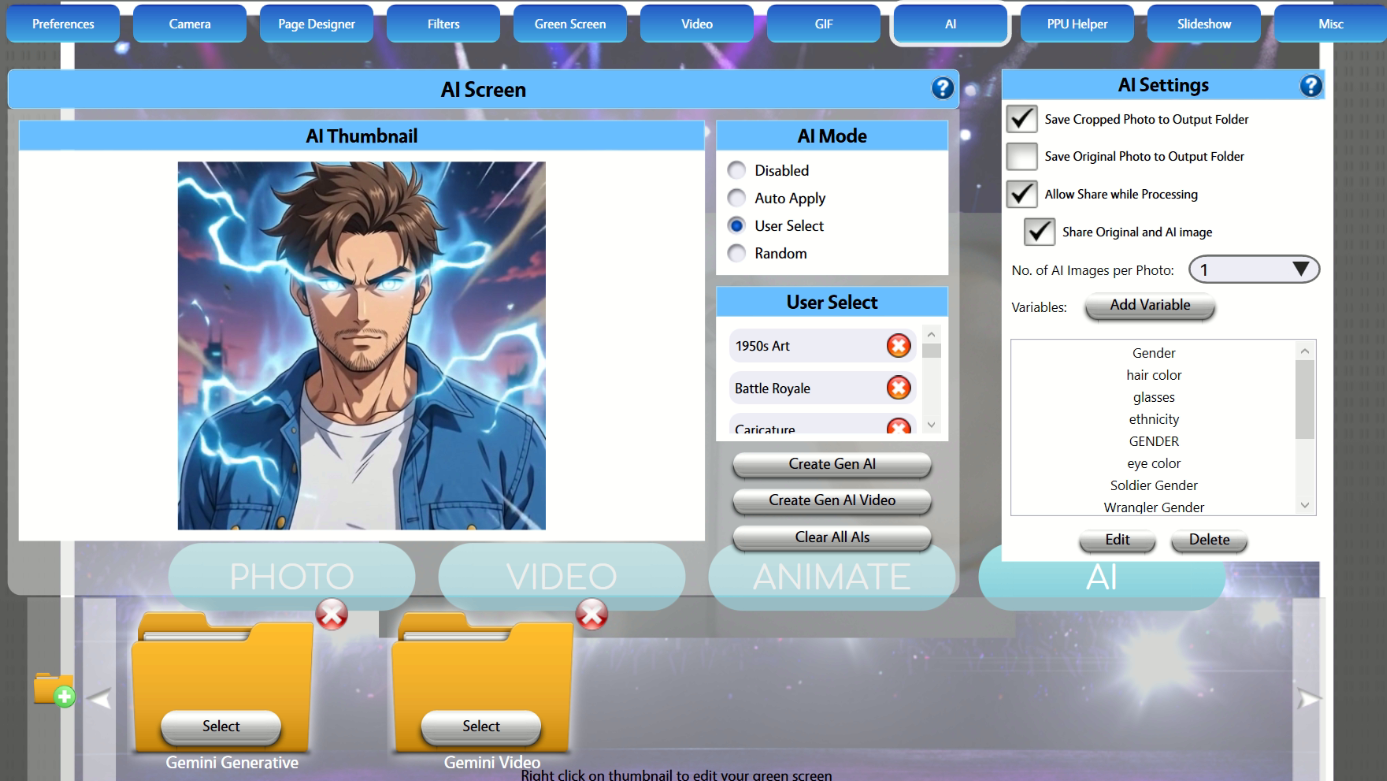
This will open the AI Video Configuration window.
AI Video Prompt Settings
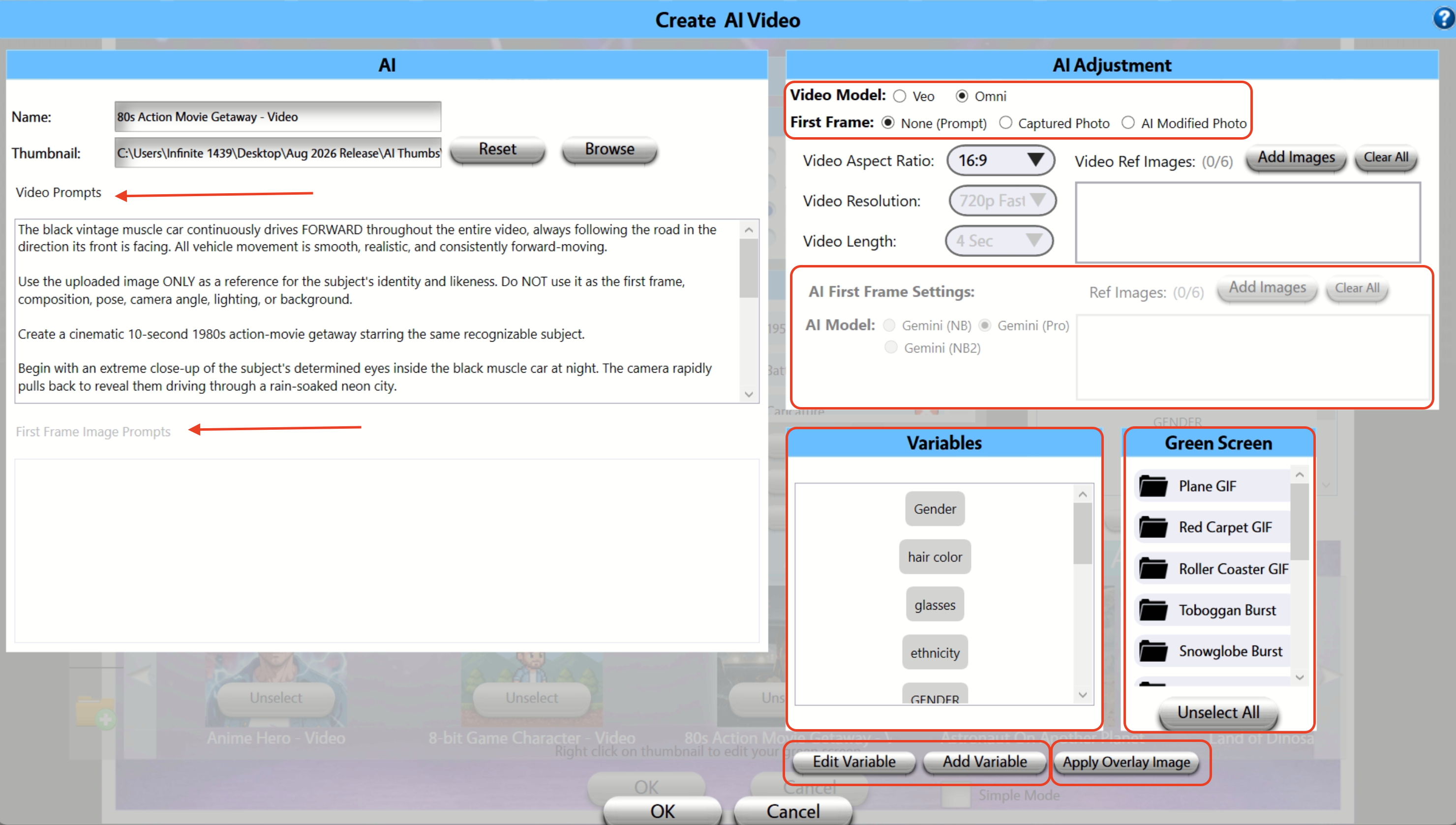
The AI Video Configuration window allows you to define how the generated video should look and behave.
Video Prompt - Required
The Video Prompt describes what should happen within the generated video.
Examples:
A superhero flying through the city skyline
A knight riding through a medieval battlefield
A movie-style action sequence with explosions
A guest walking through a futuristic cyberpunk city
The more descriptive the prompt, the more accurate the generated result will be.
First Frame Image Prompt - Required only if "Modified AI Photo" is selected
The First Frame Image Prompt controls how the initial image is generated before the video animation begins.
Examples:
Realistic superhero portrait
Fantasy warrior with glowing armor
Professional astronaut standing on Mars
Video Settings
Aspect Ratio
Choose the output aspect ratio for the generated video.
Available options may include:
16:9 (Landscape)
9:16 (Portrait) - Preferred for guests viewing results on a smartphone
Resolution
Available resolutions (if using Veo):
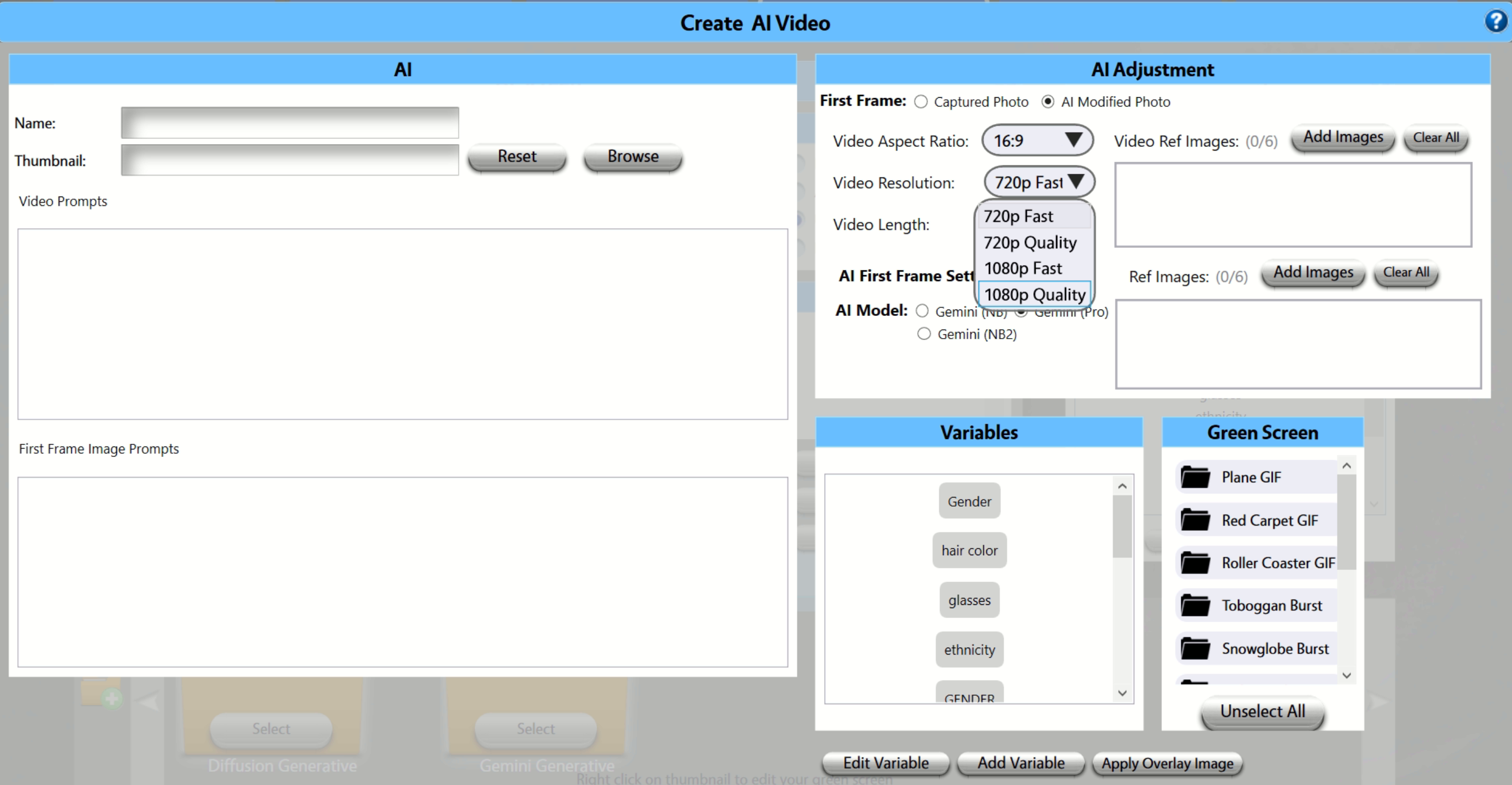
720p Fast
720P Quality
1080p Fast - 8 sec only
1080P Quality - 8 sec only
Higher resolutions provide greater image quality but incur higher rendering costs.
If using OMNI, you will be limited to 10 seconds, and you can specify the video length in the prompt.
Video Length
Choose the duration of the generated video (for 720P option):
4 Seconds
6 Seconds
8 Seconds
Longer videos may require additional processing time.
Video Reference Images
Reference Images help guide the AI toward a specific visual style, theme, or appearance.
You can upload up to 6 Video Reference Images.
Examples include:
Character artwork
Costume references
Branding assets
Style inspiration images
First Frame Options
You can choose which image is used as the starting frame of the video. View attachments on this article to see the difference.
Raw Captured Photo
Uses the original captured guest image as the starting frame, and transforms it into a video
AI Modified Photo
Uses an AI-enhanced version of the guest photo before the animation begins.
This option is ideal when creating themed or highly stylized experiences.
AI First Frame Settings
The AI First Frame Settings determine how the AI-generated starting image is created.
Available Models
Gemini Nano Banana
Optimized for speed and efficient image generation.
Gemini Nano Banana 2
An enhanced version of Nano Banana with improved image quality and prompt interpretation.
Gemini Pro
Provides the highest quality results and more advanced prompt understanding.
Results may vary depending on prompt complexity and source images.
First Frame Reference Images - Not Required, but helpful for consistency
You may upload up to 6 reference images to help guide the AI-generated first frame.
Reference images can be used to:
Maintain brand consistency
Match specific costumes
Create recurring character styles
Improve visual accuracy
Variables - Not required
Variables allow guests to influence how their AI-generated video is created.
Examples include:
Gender
Hair Color
Age Bracket
Variables can be used within prompts to dynamically personalize each guest's experience.
For information on creating and managing variables, see:
Green Screen Support - Not required
AI Video Rendering supports Green Screen workflows.
When enabled, the guest can be isolated from the background before AI processing occurs, helping produce cleaner and more accurate results.
Overlay Support - Not required
AI Video Rendering now supports Overlay Images.
Overlays can be applied to generated videos to include:
Event branding
Sponsor logos
Decorative frames
Custom graphics
This allows AI-generated content to remain consistent with your event branding.
Best Practices
For best results:
Use clear, well-lit guest photos.
Write detailed prompts that describe the desired scene and action.
Use reference images whenever a specific style is required.
Test multiple prompts before deploying an event.
Choose the lowest resolution that meets your quality requirements to reduce costs.
Frequently Asked Questions
How many AI Video Renderings are included in the trial?
Trial installations include up to 5 AI Video Renderings.
What happens after I reach the trial limit?
You must purchase a valid PBU license and the AI Add-on to continue using AI Video Rendering.
How many reference images can I upload?
You can upload:
Up to 6 Video Reference Images
Up to 6 First Frame Reference Images
Which AI model should I choose?
Nano Banana for faster generation
Nano Banana 2 for improved image quality
Gemini Pro for the highest quality and most advanced prompt interpretation
Does AI Video Rendering require an internet connection?
Yes.
AI Video Rendering uses cloud-based AI services and requires an active internet connection. Note: If your network becomes weak during your event, the content will queue up and can be sent after the fact as able. We recommend having a dedicated hotspot for AI Video to help alleviate any delays to guests
Can I add branding to my AI videos?
Yes.
Overlay Images can be applied to include logos, frames, sponsor graphics, and other branding elements.
What if some prompts are not rendering?
Run your prompt through ChatGPT and ask it to look for legal issues, constraints and character/brand likeness. Some prompts will be blocked based on legal/ethical flags.
Below are just a few samples of what is possible with AI Video in PBU: