
Overview
This guide explains how to enable and use sharing for AI or AI Page Design outputs from Kiosk while the image is still processing.
This feature allows guests to share their photos immediately after capture, even while AI rendering is still in progress. The final post-processed AI image will be delivered once rendering completes.
This helps reduce waiting time at the booth and improves overall guest experience by preventing long queues.
Requirements
To successfully share AI or AI Page Design outputs while processing, the following software must be running and properly connected:
Photo Booth Upload (PBU)
Photo Party Upload Kiosk
Helper Tool
Note:
Helper must be loaded on the correct Event.
Both PBU and Kiosk must be connected to Helper.
This is especially important if Kiosk is running on a different device from PBU.
If Kiosk does not detect Helper, refer to: Photo Party Upload Kiosk
How to Enable “Share While Processing”
From Photo Booth Upload (PBU), go to Settings.
Navigate to the AI tab.
Enable the checkbox Allow share while processing.
You can choose to share only the processed output, or include the original.
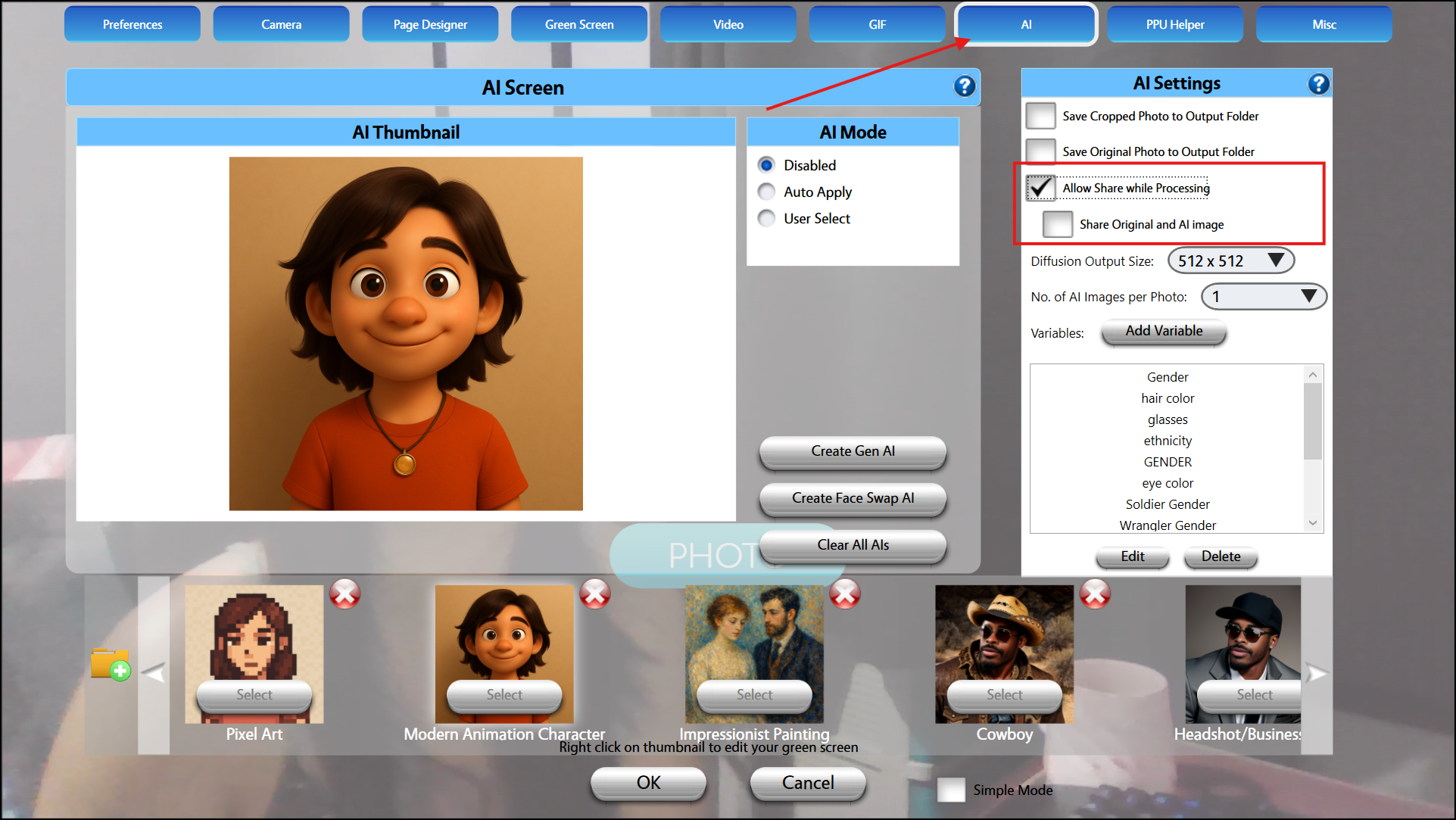
This setting applies to:
Standalone AI
AI Page Design outputs
Additional Requirement: Enable Sharing in Event Manager
Ensure that sharing options (SMS, email, etc.) are enabled in Event Manager, otherwise guests will not be able to share images.
Refer to:
How It Works
Guest captures a photo at your booth.
AI begins rendering (may take several minutes).
The photo immediately appears in Kiosk showing a visible "Processing" watermark.
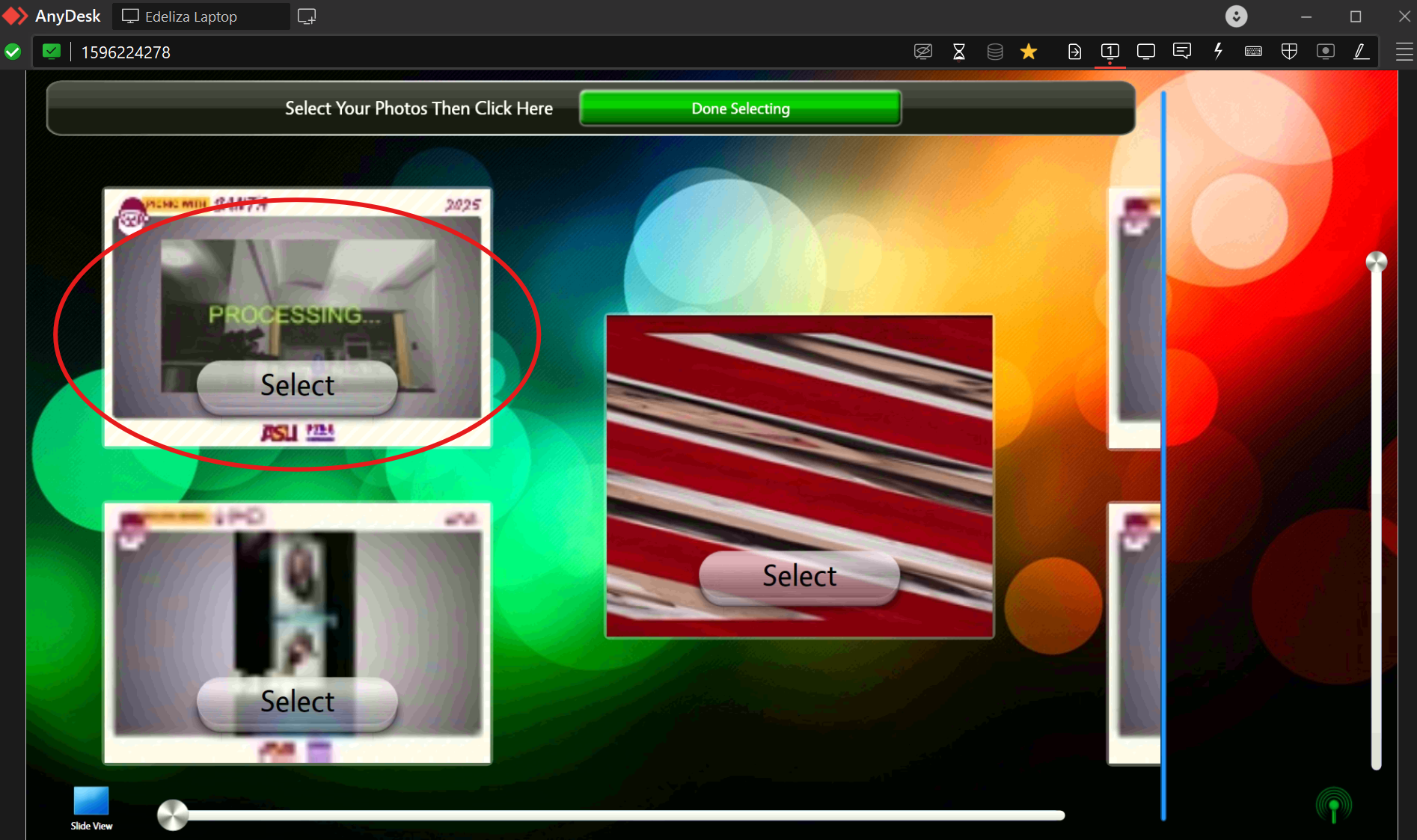
Guest will select their image and choose a sharing method
Once AI rendering completes, the guest receives the final post-processed AI image.
Troubleshooting
If sharing while processing does not work, check: